



How To Unmerge Cells in Google Sheets
As you are formatting your Google Sheets worksheets, you may want to break apart a merged cell to view the original cells. This process is referred to as unmerging cells. Fortunately, unmerging cells in Google Sheets is very easy to do.
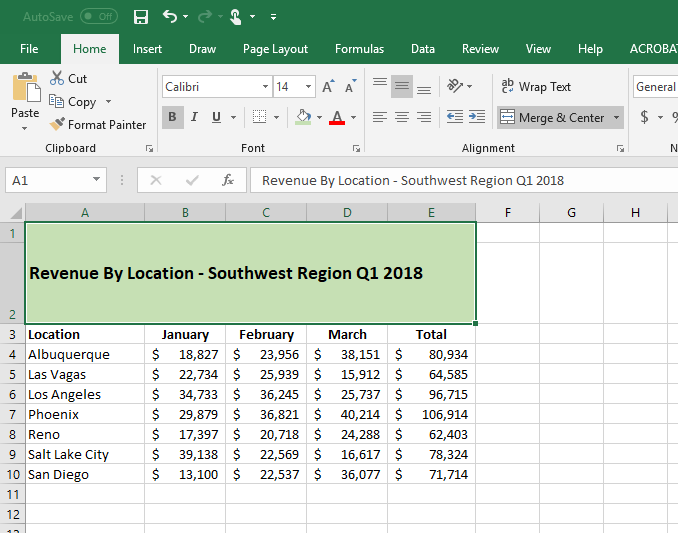
Step 1: Select the Merged Cell You Want to Unmerge
Use the cursor to highlight the merged cell you want to unmerge. The cell that is selected will be highlighted with a green border.
Step 2: Click the Unmerge Cells button
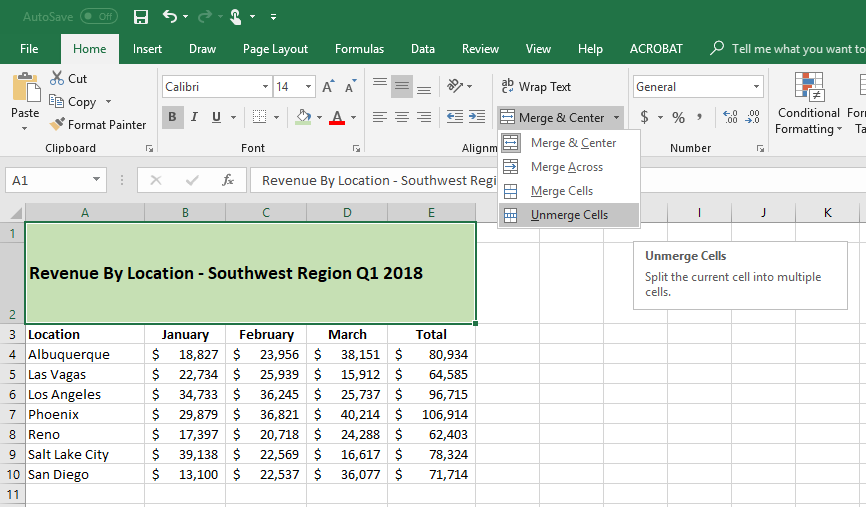
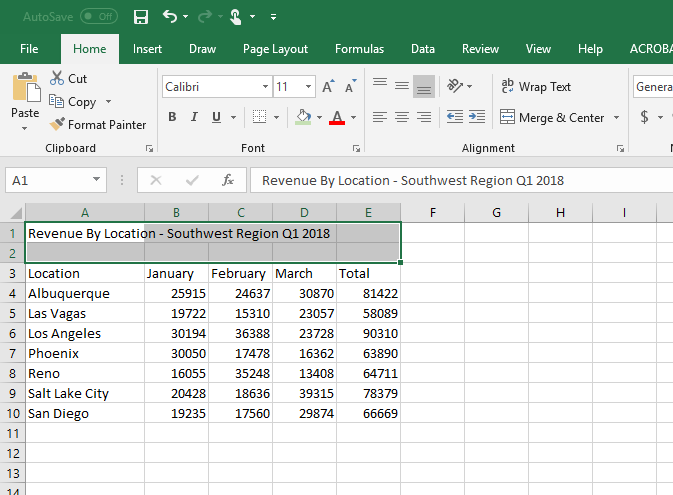
To find the Unmerge Cells button, open the Home tab and look in the Alignment Section. You will see a dropdown menu titled Merge and Center. Click the arrow on the Merge and Center menu and you will see the Unmerge Cells button. Once you click that button you will see the selected cells combined into one large cell. The cells are now Unmerged, you can now format the cells as needed.
Step 3: Format the Unmerged Cells
Now that you have unmerged your cells, you can apply formatting that will make the spreadsheet look better. You can do horizontal and vertical alignments of the content, change the fonts style, font color and background colors to get the look you want.
Related tutorials
- How to Use Conditional Formatting in Google Sheets
- How To Merge Cells in Google Sheets
- How To Lock Cells in Google Sheets
Thanks for checking out this tutorial. If you need additional help, you can check out some of our other free Google Sheets formatting tutorials, or consider taking an Google Sheets class with one of our professional trainers.